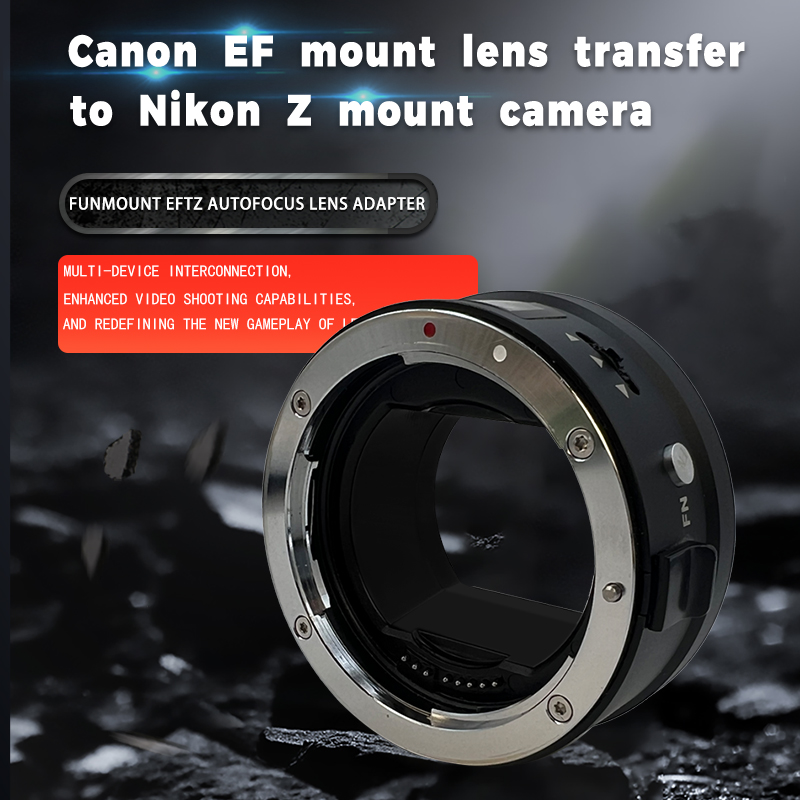
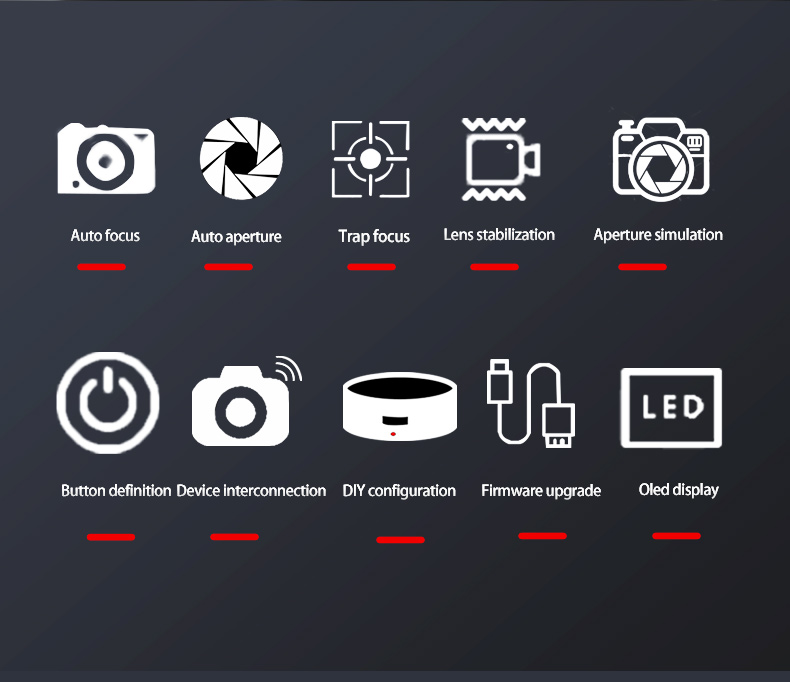
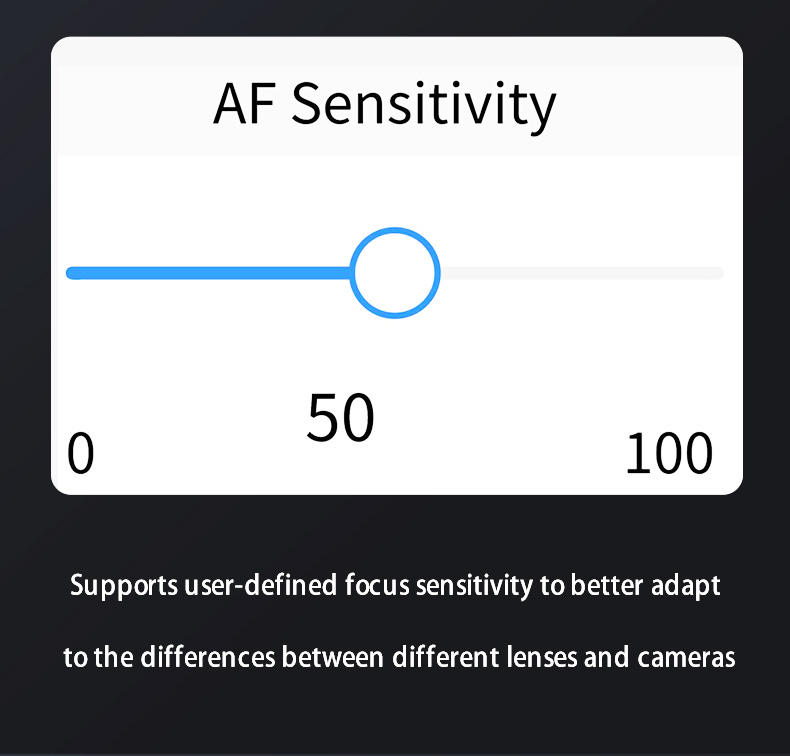
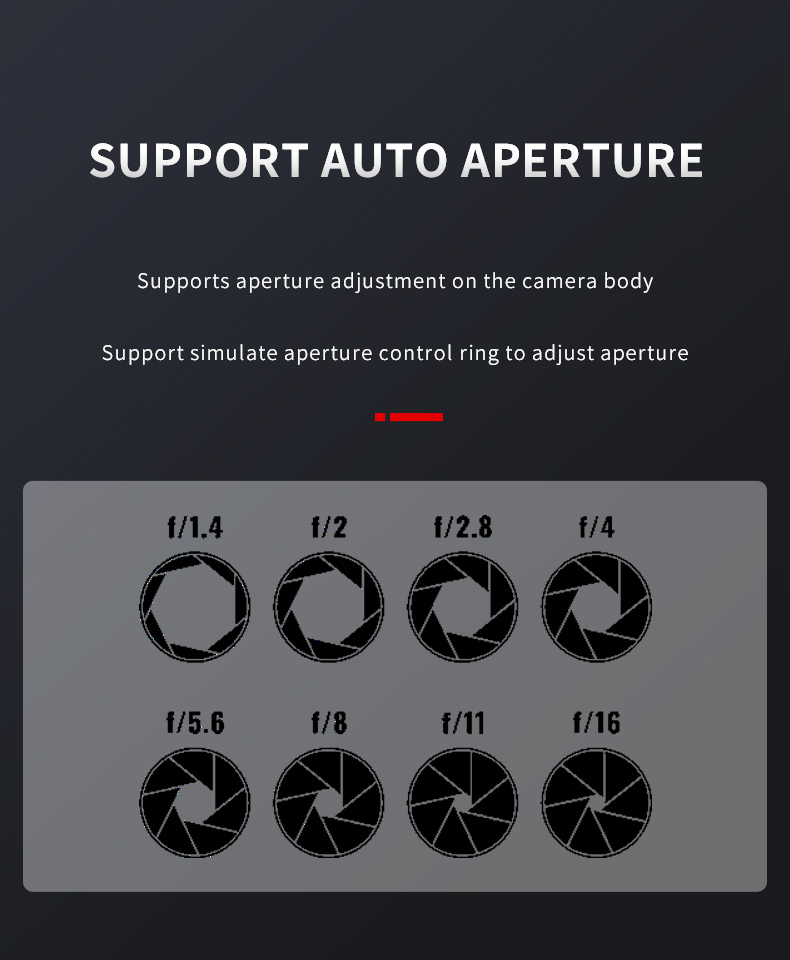
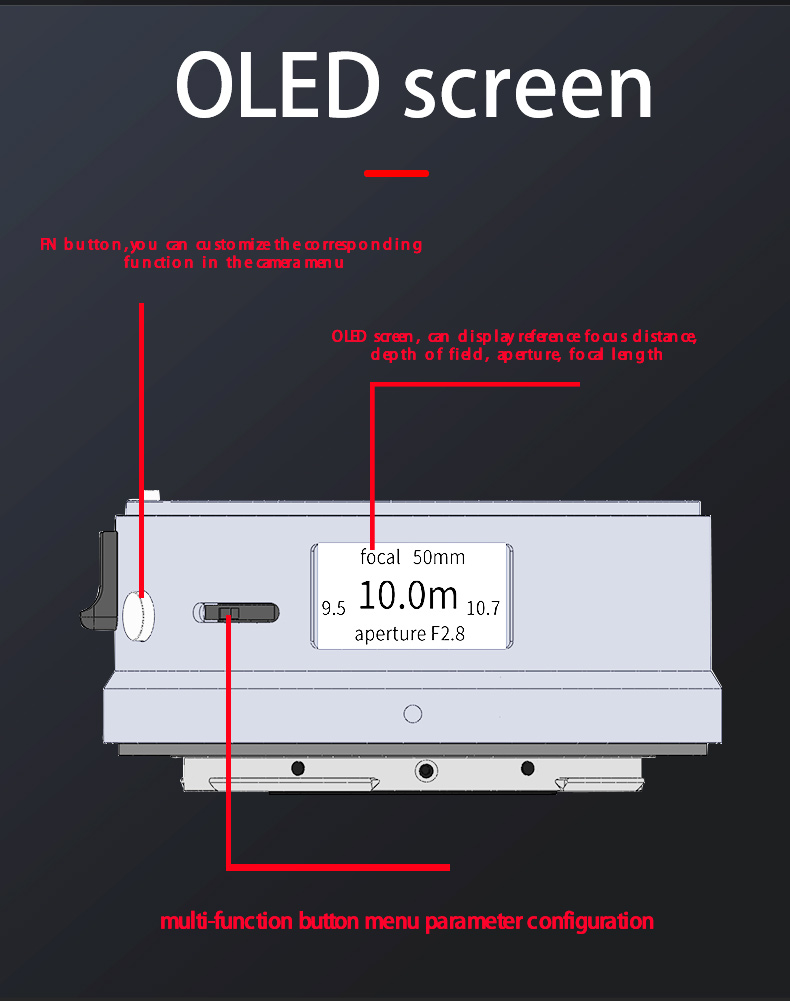
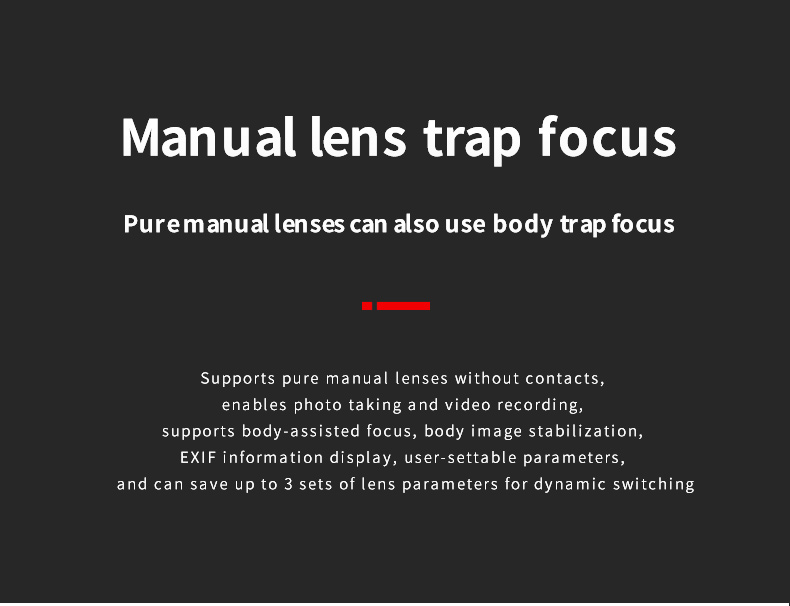
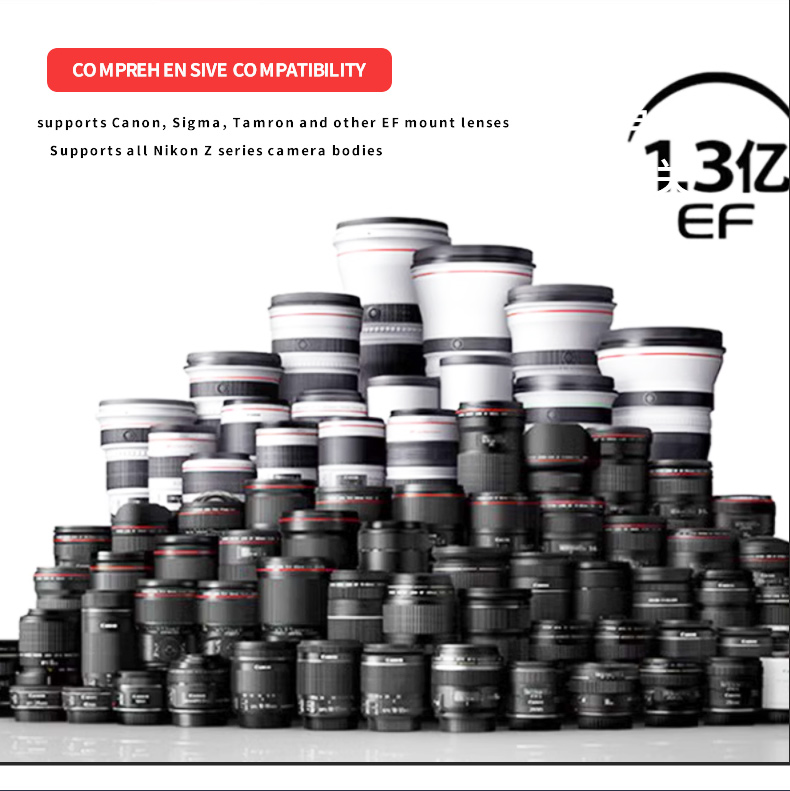
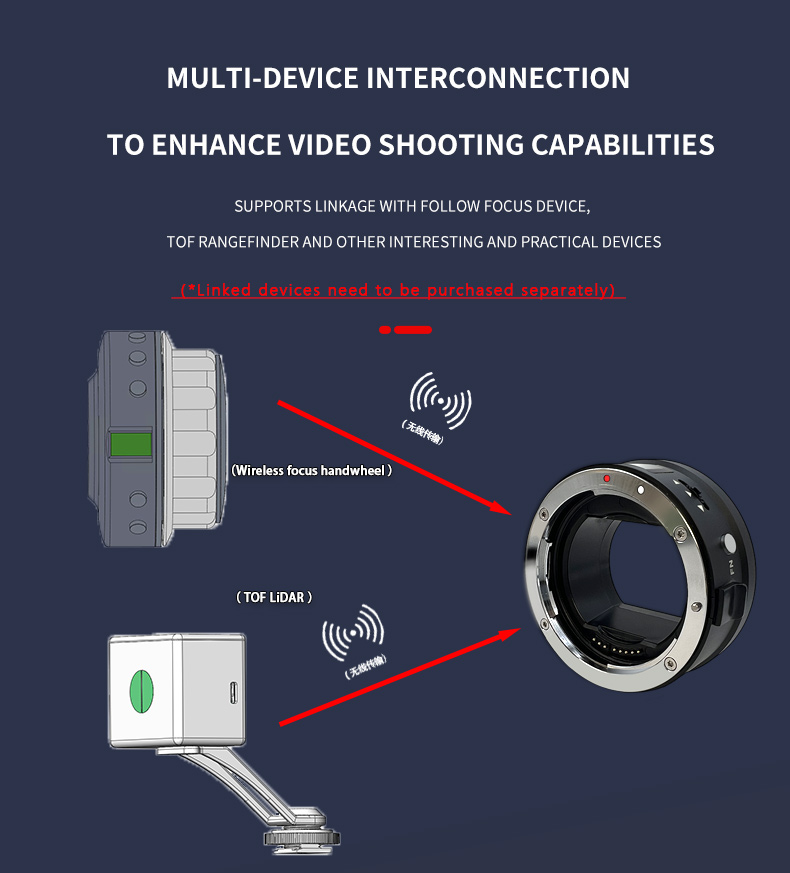
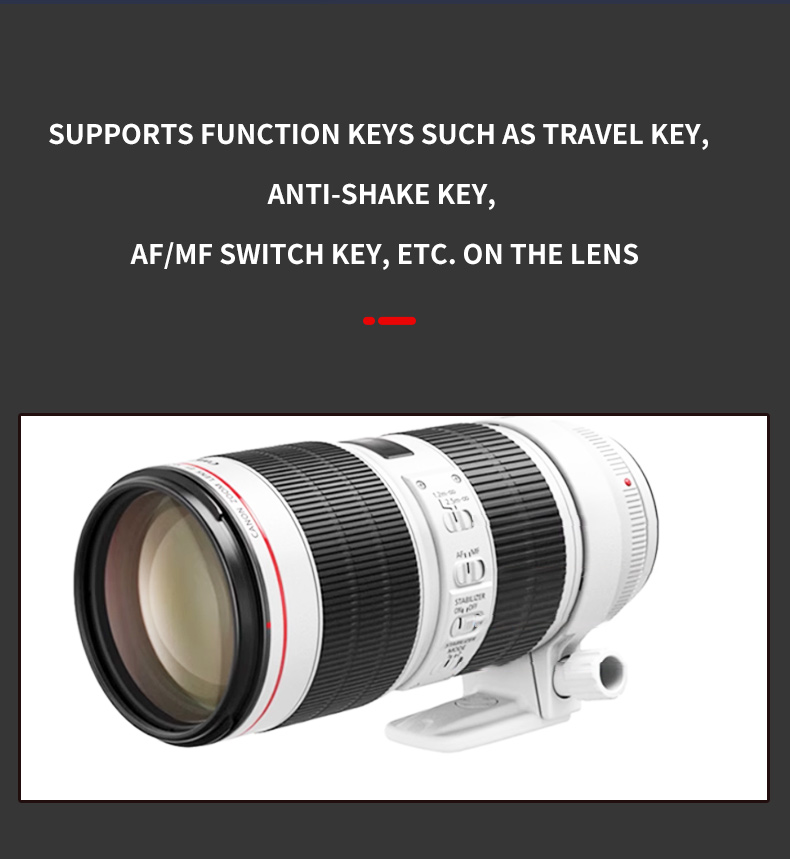
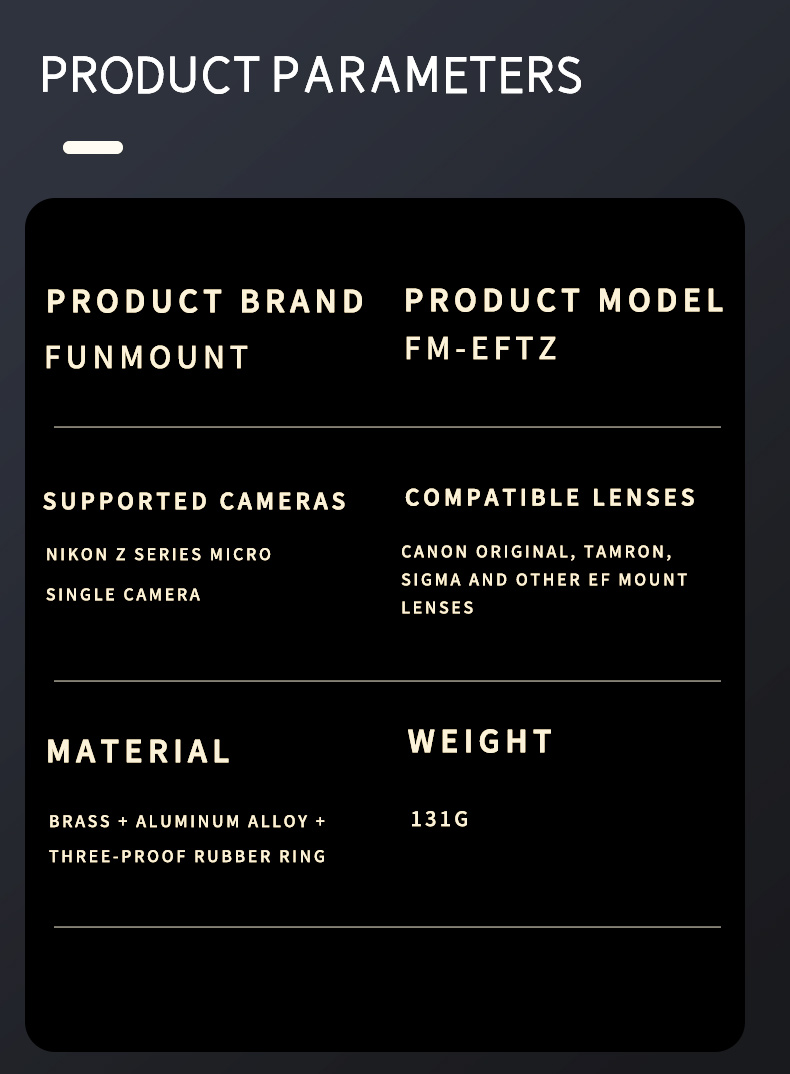
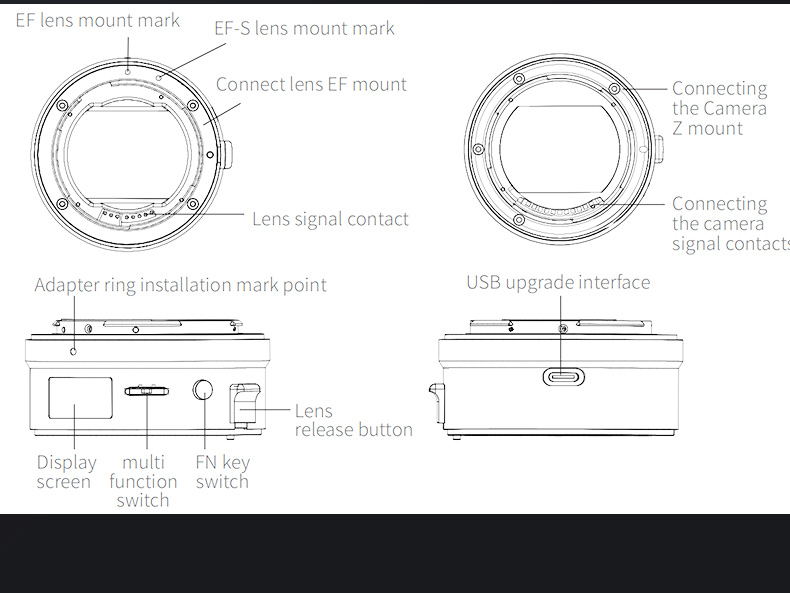
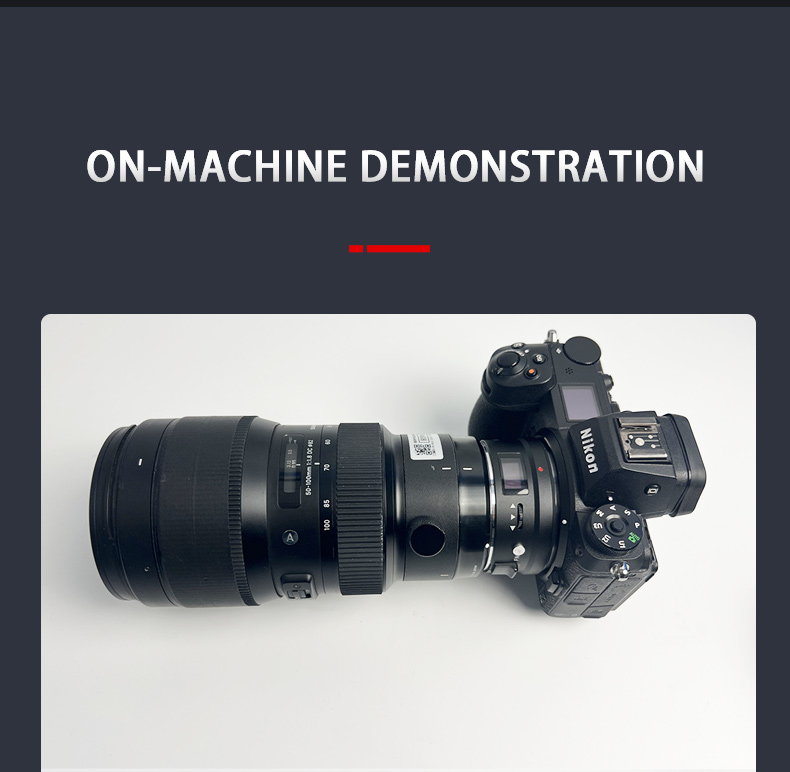
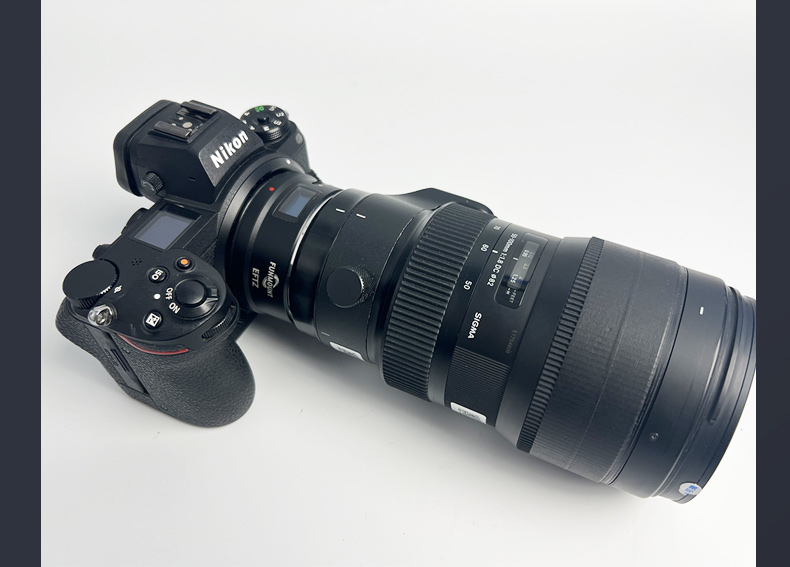
FM-EFTZ uses a high-performance processor to handle complex algorithms, giving it greater upgrade headroom and flexibility. It adapts Canon EF lenses to Nikon Z cameras with autofocus and full functionality. An all-copper, high-precision machined body, OLED screen, custom FN button and everyday weather sealing — combined with an on-screen menu that stores up to 16 lenses — adapt better to the differences between lenses and bodies.
Every build ships with its own release notes — please confirm the model and version before upgrading.
No separate release notes were published for this build. The package includes a readme.txt with upgrade steps — unless you need this exact version, we recommend upgrading straight to the latest.
Remove the adapter from the camera and lens first — the whole process takes about a minute.
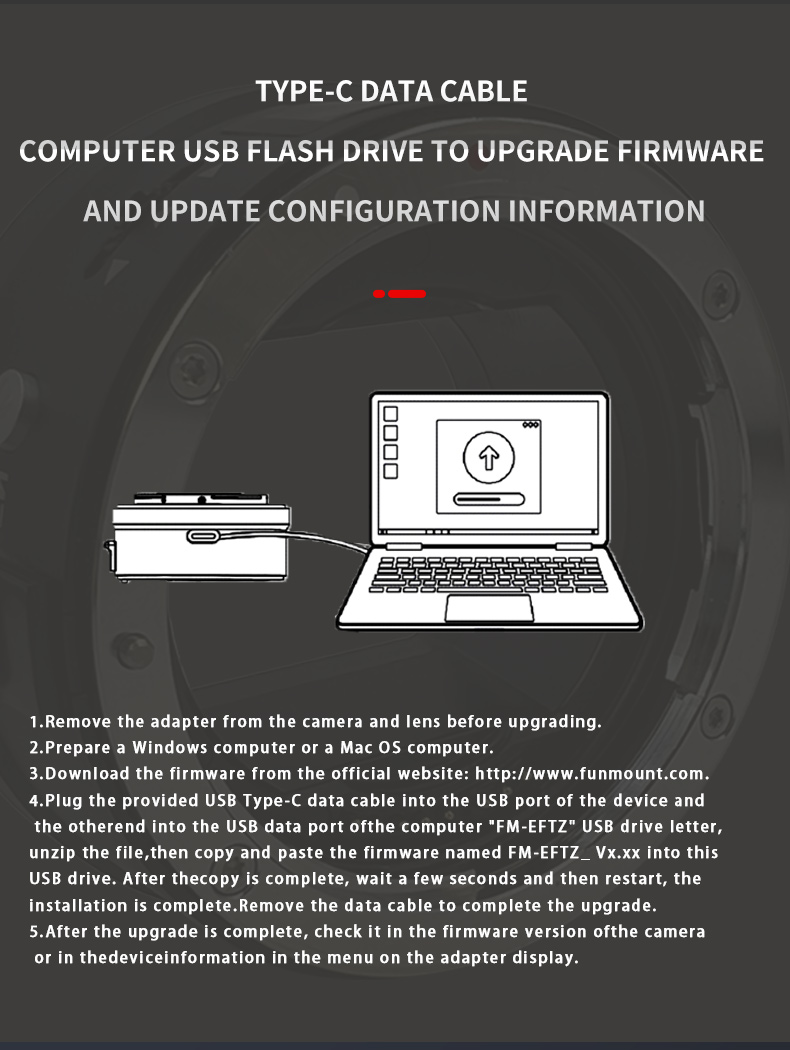
Remove the adapter from the camera and lens before upgrading.
Prepare a Windows PC or a Mac.
Download the matching firmware package from the Firmware Downloads section on this page — all earlier builds are hosted here too.
Plug the supplied USB Type-C cable into the device and the other end into your computer. An “FM-EFTZ” USB drive appears — unzip the file and copy the firmware named FM-EFTZ_Vx.x.x into it. Wait a few seconds, restart, then unplug the cable to finish.
After upgrading, check the version in the camera body firmware menu or in the device info of the adapter’s display menu.
The complete record of every firmware iteration, including early builds that were never published as standalone packages.
Click any image to enlarge; use ← / → to browse.

Failed upgrade, version check or compatibility questions — our support team can help one to one.