EN 中文
Get Support
HOMEPRODUCTFM-ETZFM-EFTZFM-MTZ MACROFM-FLASH F1CY-NZPK-NZMD-NZFD-NZEF-NZNF-NZTOOLCUSTOMCONTACTEN → 中文
Home/PRODUCT/FM-MTZ MACRO
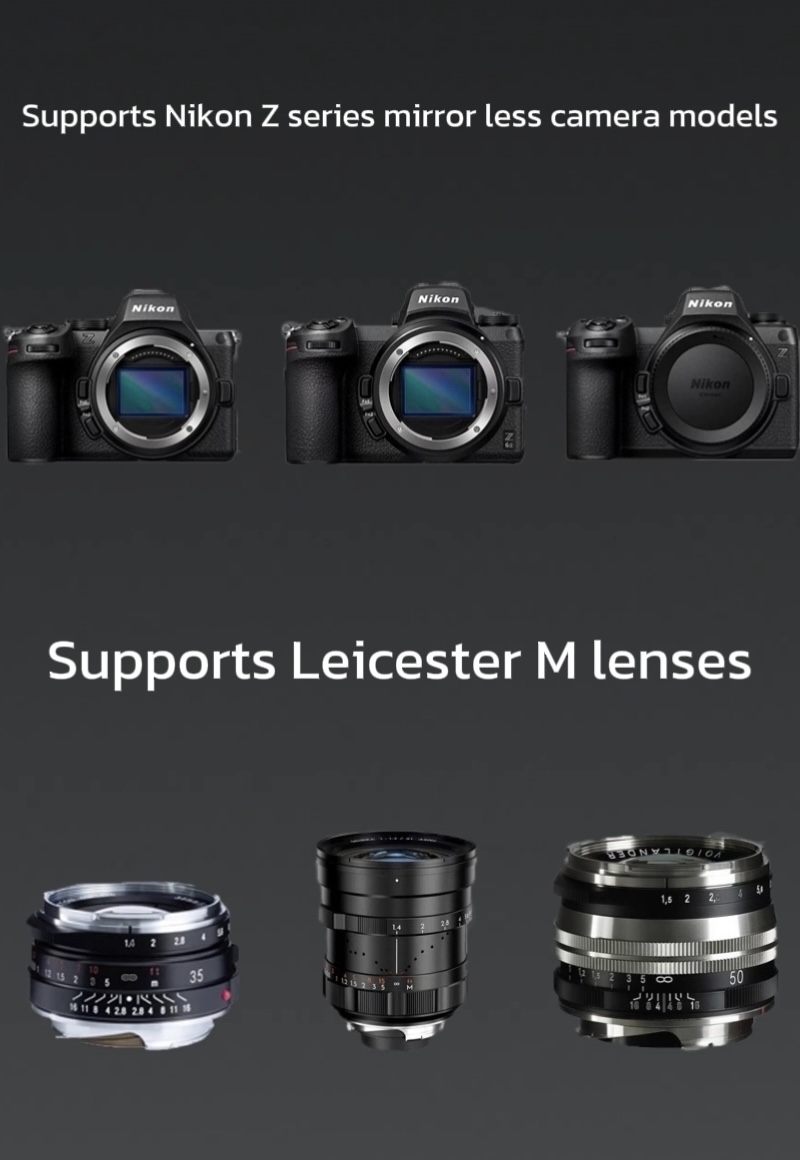
FM-MTZ MACRO · LEICA M → NIKON Z

One adapter,
two ways to shoot

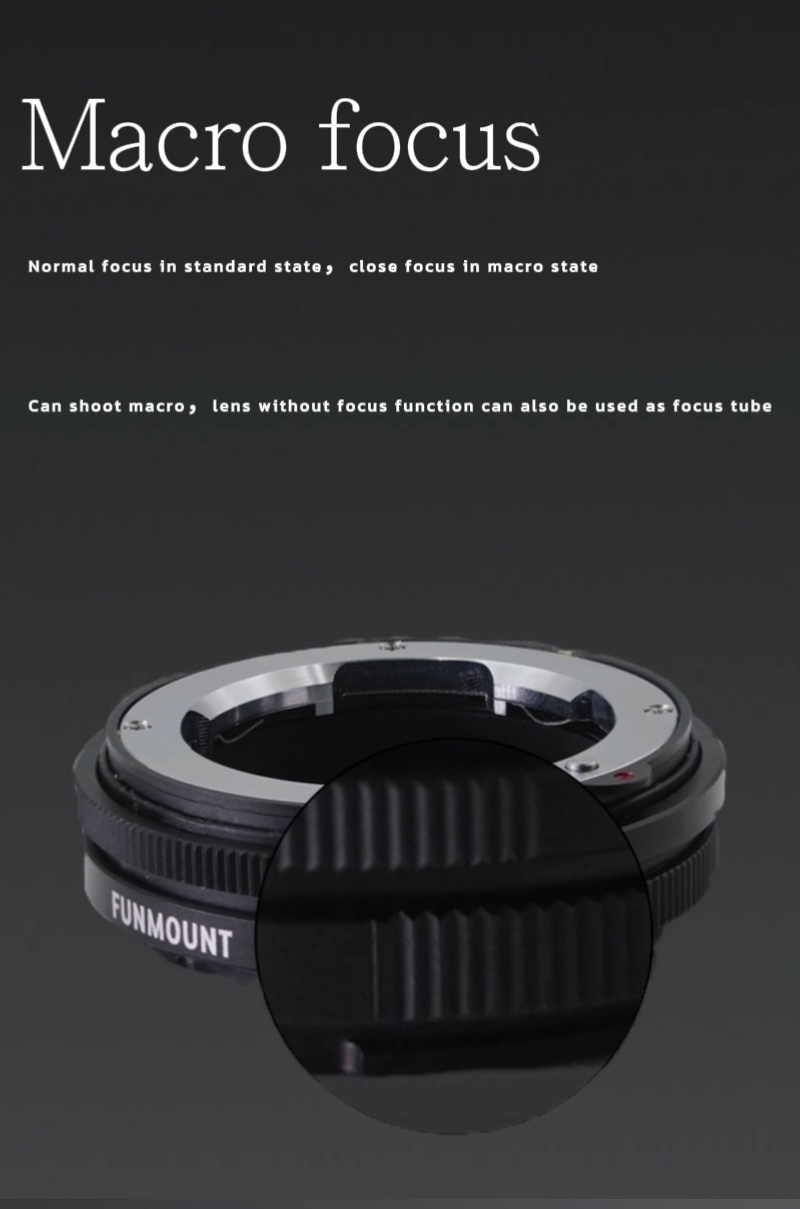
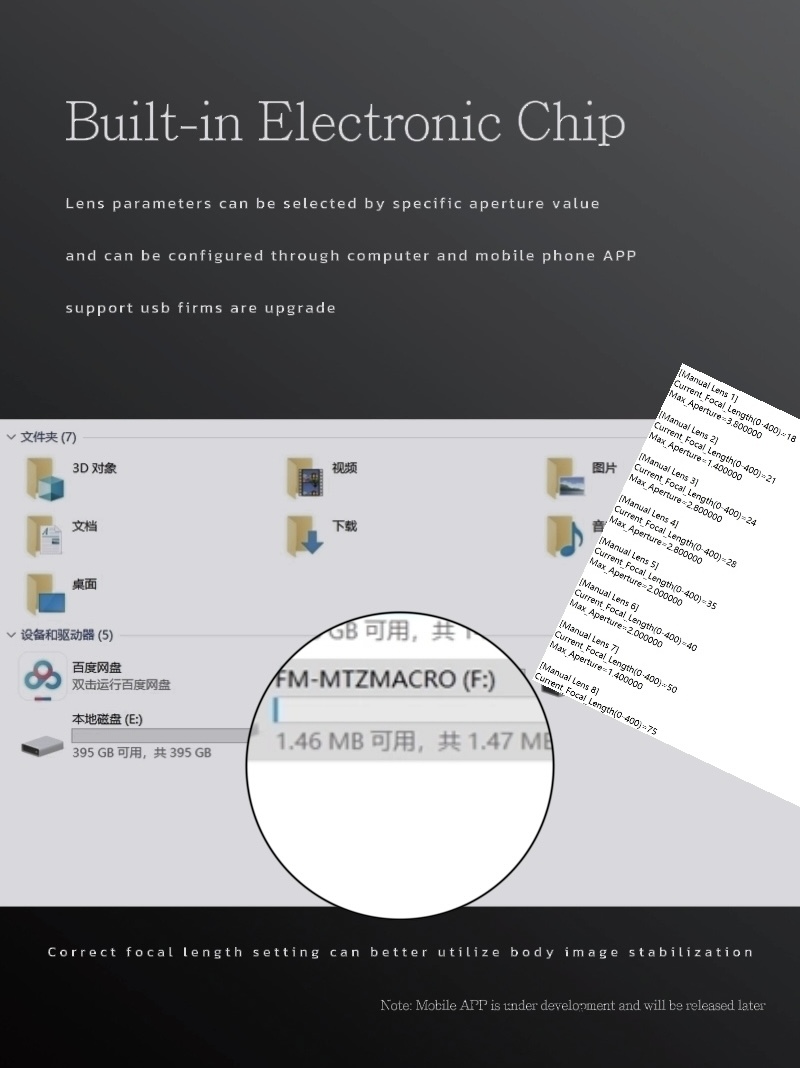
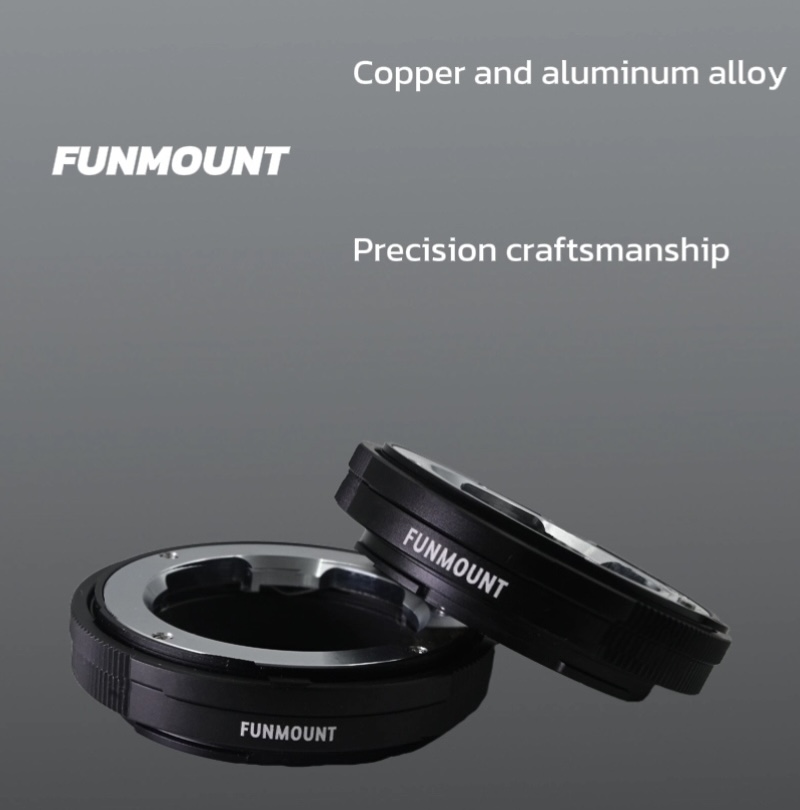
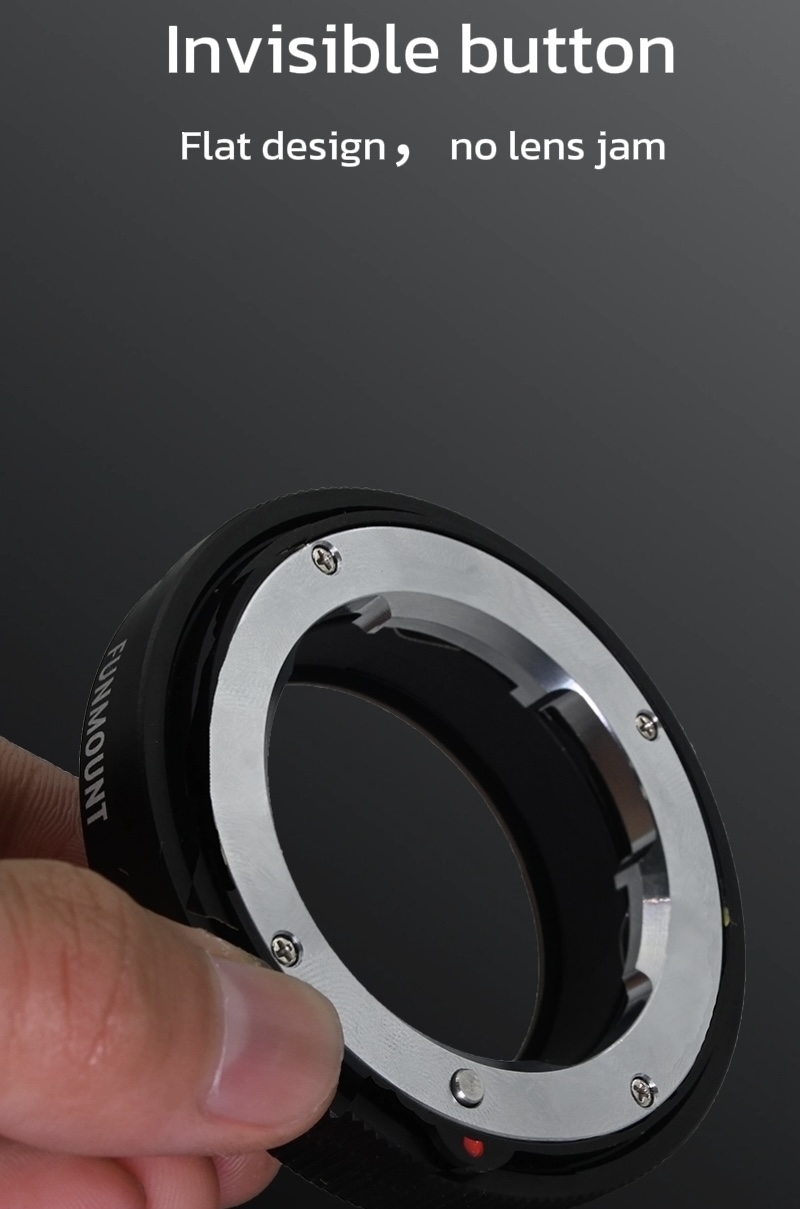
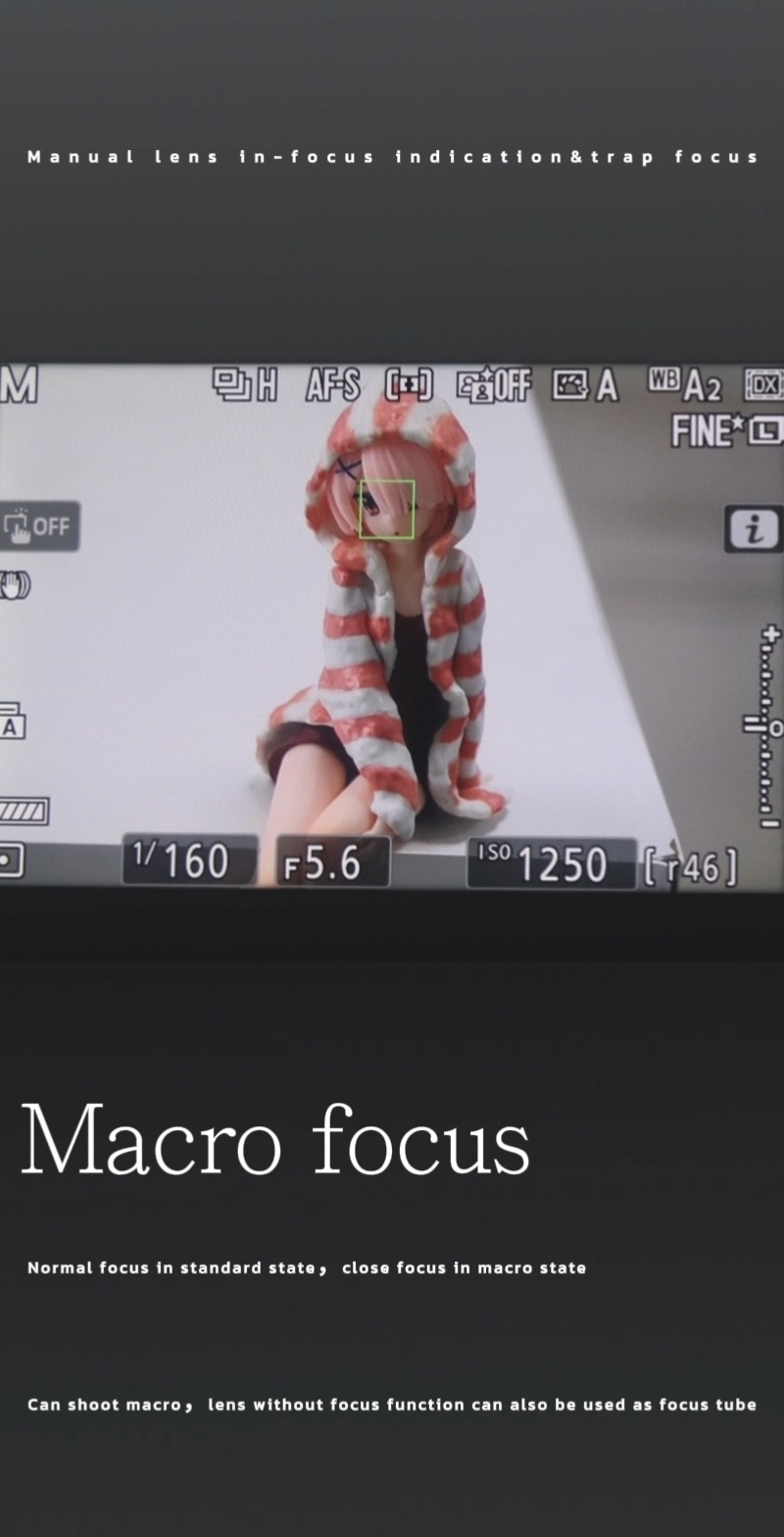
The FM-MTZ MACRO adapter mounts Leica M-mount lenses as usual, and by rotating it to extend, it gives ordinary lenses macro (close-up) capability. A built-in electronic chip provides focus confirmation on Nikon bodies, and you can set a matching focal length for correct in-body stabilisation and EXIF recording.
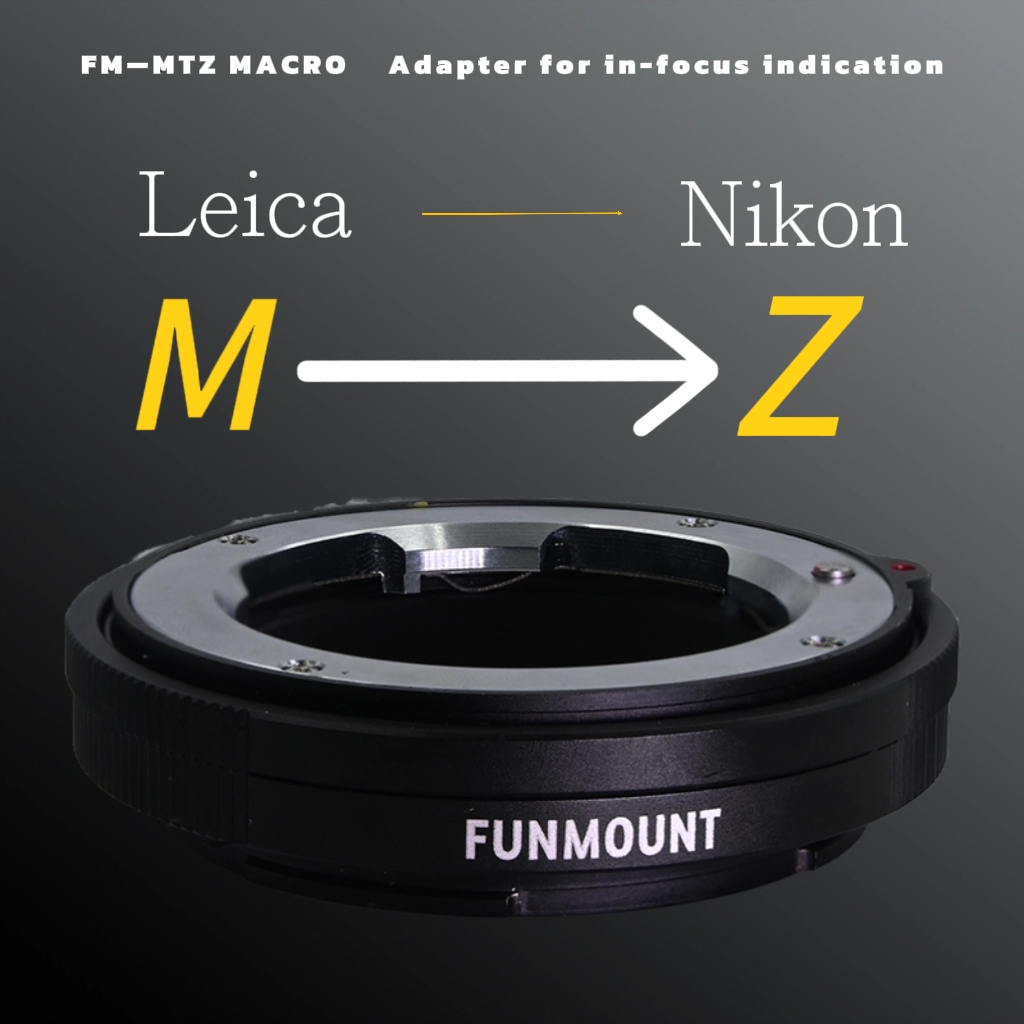
Rotate for macroFocus confirmationMatched stabilisationEXIF recording
FM-MTZ MACRO
Firmware

Firmware Downloads

Every build ships with its own release notes — please confirm the model and version before upgrading.

ZIP
FM-MTZMACRO_V1_4_1 firmware + release notesV1.4.1 · 263.61 KB · Released 2025-11-25
Release notes
  • Adapted for Funmount configuration tool, supporting camera parameter settings via Bluetooth on PC and mobile devices
  • Fixed the shutter lag issue when the camera's anti-flicker function is enabled
Download ↓
ZIP
FM-MTZMACRO_V1_4_0 firmware + release notesV1.4.0 · 263.59 KB · Legacy build
Release notes

No separate release notes were published for this build. The package includes a readme.txt with upgrade steps — unless you need this exact version, we recommend upgrading straight to the latest.

Download ↓
ZIP
FM-MTZMACRO_V1_3_0 firmware + release notesV1.3.0 · 262.58 KB · Released 2025-07-08
Release notes
  • Fixed the bug of shutter lag after aperture modification
Download ↓
3 firmware builds · all hosted locally
How to upgrade

How to Upgrade

Remove the adapter from the camera and lens first — the whole process takes about a minute.

1

Remove the adapter from the camera and lens before upgrading.

2

Prepare a Windows PC or a Mac.

3

Download the matching firmware package from the Firmware Downloads section on this page — all earlier builds are hosted here too.

4

Plug the supplied USB Type-C cable into the device and the other end into your computer. An “FM-MTZMACRO” USB drive appears — unzip the file and copy the firmware named FM-MTZMACRO_Vx.x.x into it. Wait a few seconds, restart, then unplug the cable to finish.

5

After upgrading, check the version in the camera body firmware menu or in the device info of the adapter’s display menu.

Release notes

Release Notes

The complete record of every firmware iteration, including early builds that were never published as standalone packages.

V1.4.12025 / 11 / 25
  • Adapted for Funmount configuration tool, supporting camera parameter settings via Bluetooth on PC and mobile devices
  • Fixed the shutter lag issue when the camera's anti-flicker function is enabled
V1.4.0
No separate release notes were published for this build. The package includes a readme.txt with upgrade steps — unless you need this exact version, we recommend upgrading straight to the latest.
V1.3.02025 / 7 / 9
  • Fixed the bug of shutter lag after aperture modification
Gallery

Gallery

Click any image to enlarge; use ← / → to browse.
SUPPORT

Need help upgrading?

Failed upgrade, version check or compatibility questions — our support team can help one to one.

Contact support →Open Bluetooth upgrade tool